Gaze-aware Proactive AI Assistance for Digital Article Readers
HCI Eye Tracking LLM Systems
CS 770 Human Computer Interaction
Overview
This was a team project on building a gaze-aware reading assistant for digital articles, with a particular focus on ESL readers working through dense academic or informational text. The core question was whether a browser-based system could use webcam gaze behavior as an implicit signal of difficulty and then provide targeted AI support without forcing the user to constantly stop and ask for help.
The final project combined two closely related pieces: a Chrome extension workflow for paragraph-level explanations and a web-based gaze-tracking demo for mapping eye movements onto document content. That combination made the project interesting from an HCI perspective because the main challenge was not only generating explanations, but also grounding those explanations in the right reading location at the right time.
Motivation
Reading dense digital text can be cognitively demanding, especially for users reading in a second language. Traditional reading aids are usually reactive: the user has to stop, highlight something, and explicitly ask for help. We wanted to study whether a system could use gaze behavior as an implicit signal of difficulty and provide support at the right time without breaking the reading flow.
System architecture
The high-level design had three layers.
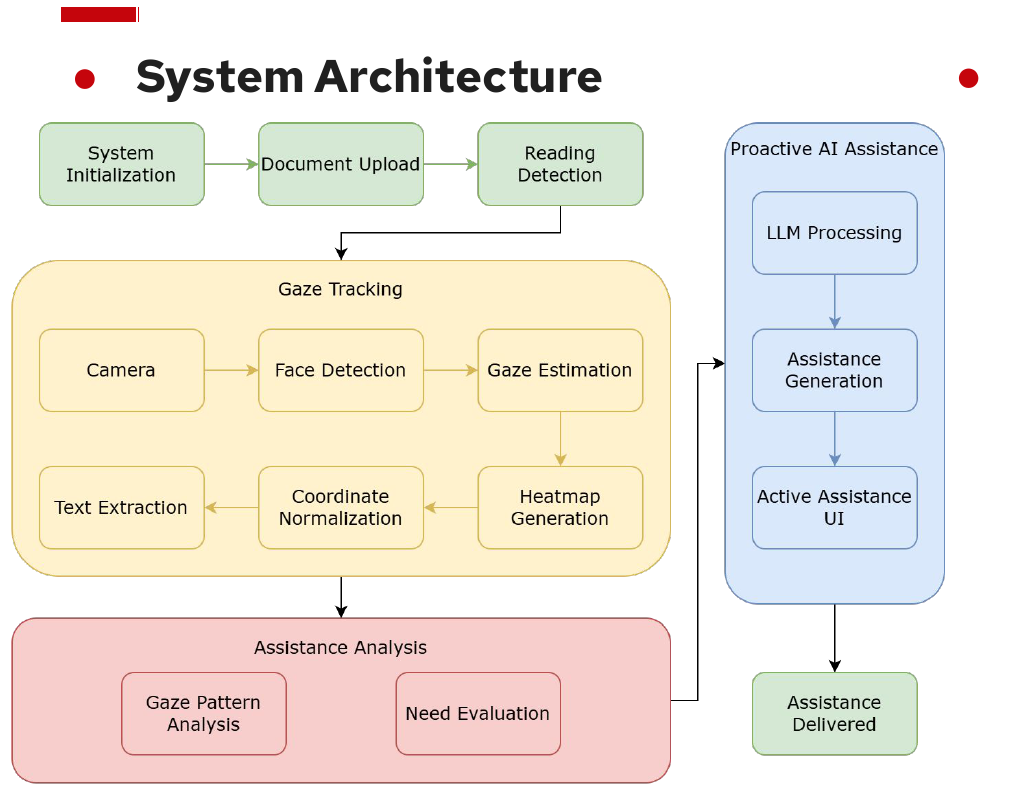
1. Browser reading workspace
We built the reading experience around a browser interface that could load PDF documents and expose paragraph-sized reading regions. In the Chrome extension prototype, the user could upload a PDF, store an API key, and request help either by selecting text directly or by activating a paragraph-finder mode that highlighted candidate text blocks under the cursor.
2. Gaze sensing and localization
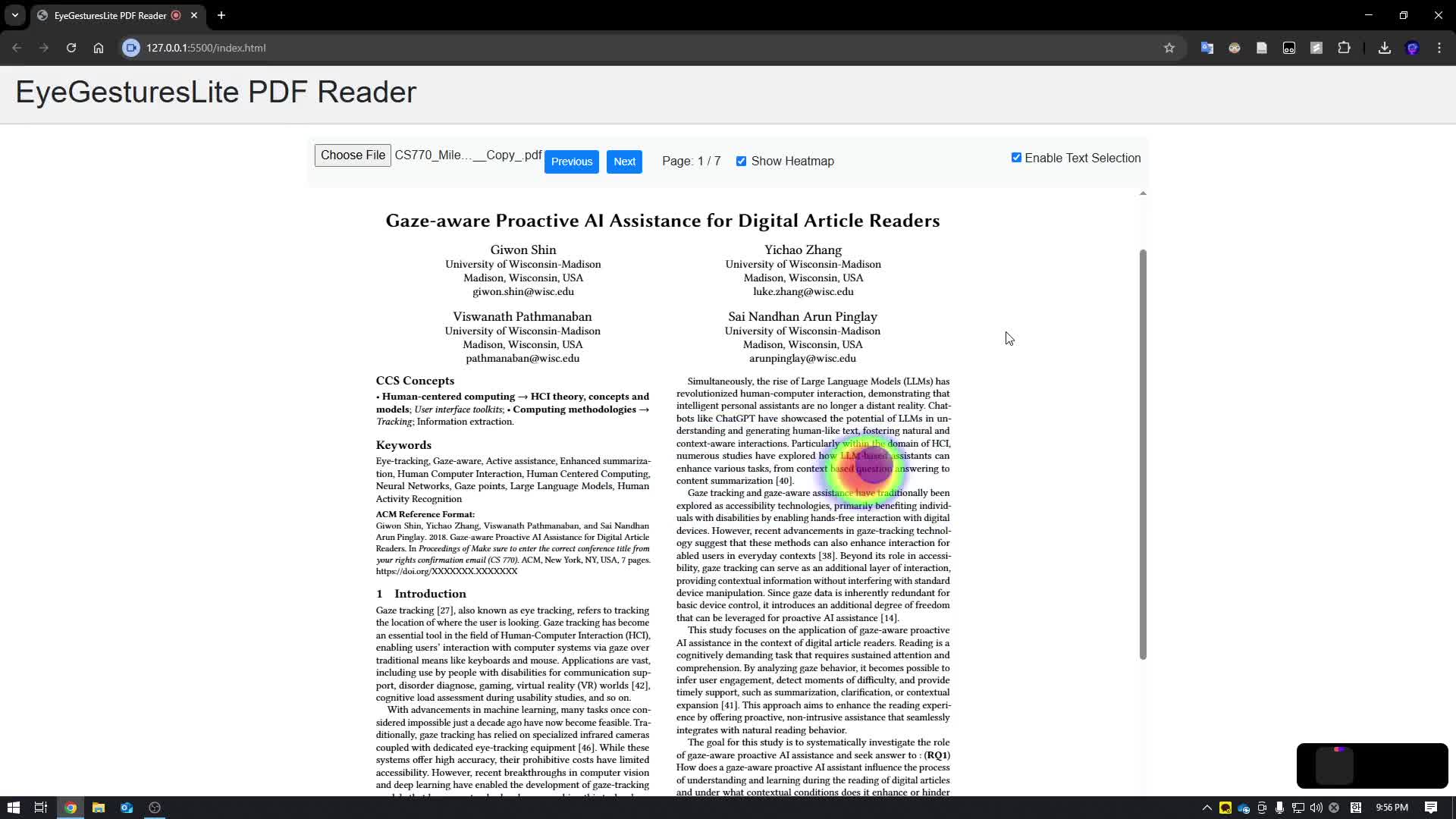
For gaze input, we experimented with a webcam-based pipeline built around EyeGestures / EyeGesturesLite, which uses MediaPipe Face Mesh, calibration, and lightweight regression to estimate on-screen gaze coordinates. In the web demo, gaze points were rendered as a live cursor and heatmap over a PDF.js document viewer. That let us inspect where the reader was looking, how long they dwelled in a region, and whether the gaze trace aligned with the document structure.
3. Assistance generation
Once the system identified a relevant paragraph, the assistant used an LLM to generate definitions, simplifications, and contextual explanations for the selected region. The long-term idea was fully proactive help driven by gaze-based difficulty signals. In the prototype stage, the more reliable interaction mode was a paragraph-level explanation flow inside the browser, which gave us a practical way to test whether the assistance itself was useful.
What we actually implemented
The archived project code makes the implementation details clearer.
Chrome extension prototype
The extension included a popup for entering an API key, uploading a PDF, and launching paragraph-level assistance. A content script handled text selection and injected an explanation panel directly into the page, while a background service worker coordinated the LLM request and returned the generated explanation to the active tab.
That version of the system was useful for validating the UX loop: identify a paragraph, request help in context, and display the explanation without forcing the user to leave the reading view.
Gaze-tracking web demo
Separately, we built a PDF reading demo that rendered documents with PDF.js, overlaid gaze heatmaps with heatmap.js, and used an EyeGestures-based webcam tracker to estimate where the reader was looking on the page. The demo supported calibration, live gaze visualization, and simple gaze-aware scrolling behavior so we could test whether raw webcam predictions could be made usable inside a realistic document interface.
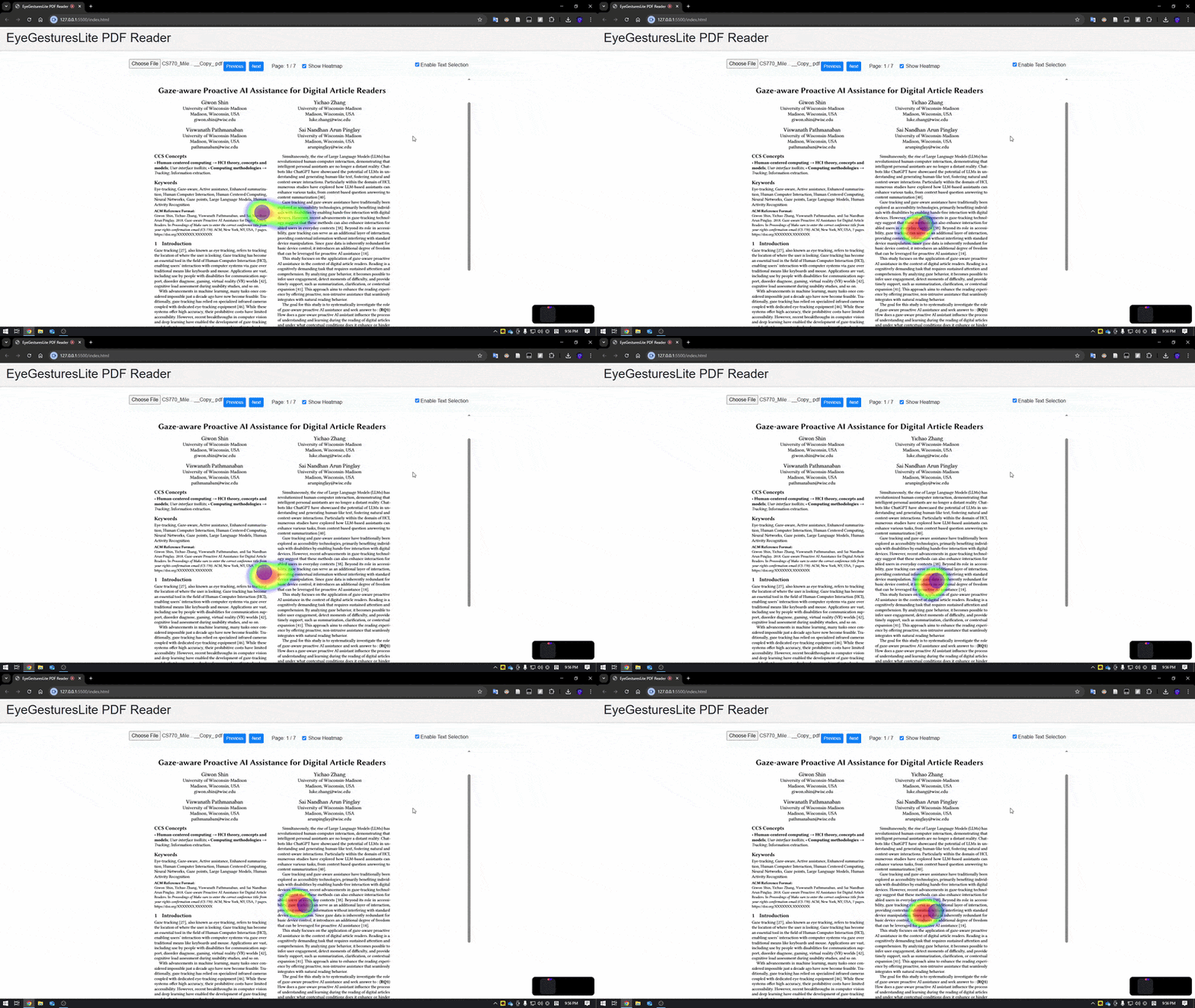
Short demo of the gaze heatmap overlay while reading an uploaded PDF document.
Why the split mattered
The assistance UI and the gaze demo solved different problems. The extension helped us validate the interaction design, while the gaze demo exposed the harder systems problem: turning noisy webcam gaze into stable document-level context. That second part was the real bottleneck if the system was ever going to become genuinely proactive.
Study workflow
The presentation’s workflow slide is a good summary of the experimental procedure, while the report gives the authoritative participant accounting. We recruited 15 ESL learners, and the report notes that 11 participants completed all experimental trials and were included in the final within-subject quantitative analysis.
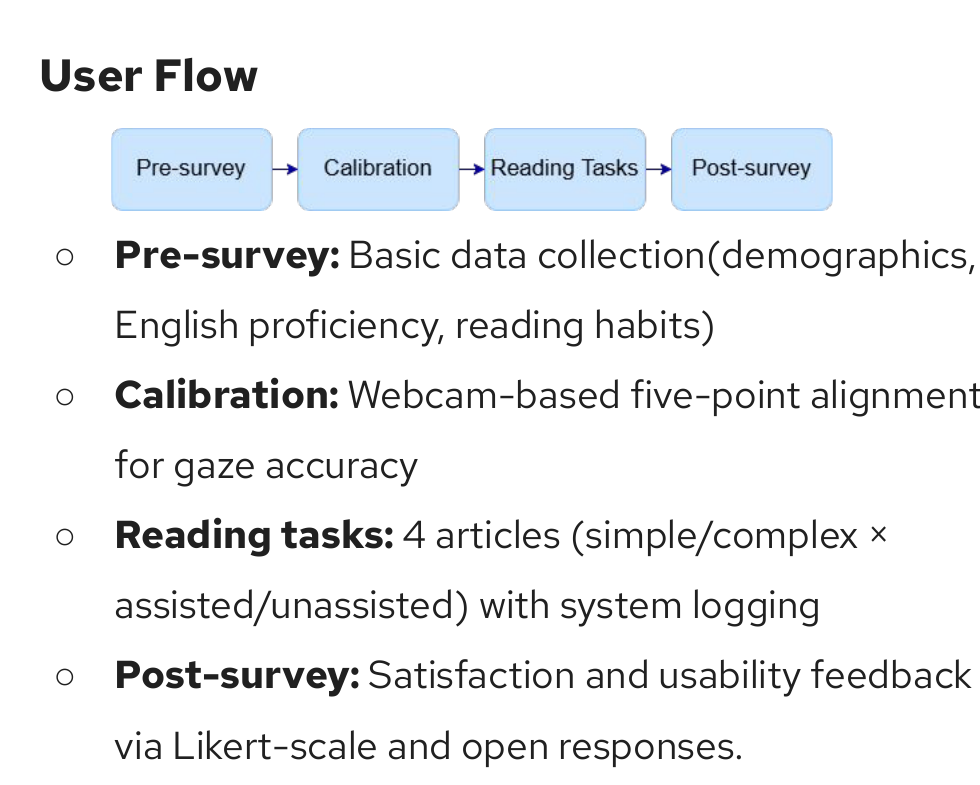
In practice, the study followed a four-step flow: pre-survey, five-point webcam calibration, four reading tasks covering simple/complex passages with assisted/unassisted conditions, and a post-survey capturing satisfaction and usability feedback.
Key results
We evaluated the system with ESL users reading passages of different difficulty levels. The most meaningful gains appeared on harder texts.
For complex passages, average comprehension improved from 8.64 to 9.18 out of 10, while average reading time dropped from 517.7 seconds to 471.0 seconds. Dwell time also decreased substantially, from 96.45 seconds to 58.36 seconds, suggesting lower cognitive load during reading.
For simple passages, the comprehension gain was smaller, moving from 9.82 to 9.91, which suggests a ceiling effect. Even so, reading time still improved from 249.8 seconds to 218.7 seconds, showing that the assistant could make reading more efficient even when the text was already relatively easy.
We also observed clear improvements in gaze-based difficulty indicators. On complex passages, all participants exceeded five regressions without assistance, but with GPA only 27.3% did. On simple passages, mean regression count decreased from 2.82 to 1.64. In the user study, definitions and simplifications were rated as the most useful features, while overly frequent assistance could sometimes feel intrusive.
My contribution
This was a team project, but my main contribution was building the working browser demo for the gaze-tracking and document-localization side of the system.
The hardest engineering problem was making the gaze output actually usable in the document interface. I worked on overlaying the estimated gaze correctly on top of the rendered document, connecting those gaze coordinates to the PDF viewer, and reasoning about the user’s position in the full document rather than only inside the visible viewport.
Concretely, that meant dealing with several coordinate systems at once:
- webcam-based gaze estimates,
- browser viewport coordinates,
- PDF page canvases and text layers,
- and scroll offsets inside the document container.
That mapping layer mattered because the rest of the system only becomes meaningful once the model knows which paragraph the reader is actually attending to. In practice, this was the bridge between raw gaze predictions and higher-level behaviors such as paragraph highlighting, reading-progress tracking, dwell-time estimation, and future assistance triggers.
Why this project matters
This project gave me hands-on experience with building a user-facing ML/HCI system where the hardest problems were not only about model accuracy, but also about real-time integration, calibration, and interface reliability. A gaze model by itself is not enough; the hard part is turning noisy gaze estimates into document-aware signals that a downstream assistant can actually use.
More broadly, it reinforced an important lesson for me: in interactive ML systems, the value often comes from the interface layer that connects sensing, representation, and action. Getting the gaze-to-document alignment right was what made the rest of the system possible.